
A few weeks ago I got assigned a task that sounded almost too simple to write about: deploy the Rapid7 Insight Agent on a new RHEL 9.6 host using certificate-based authentication. I’d done plenty of Insight Agent installs before with token-based deployment, so I figured this would be a thirty-minute job — install the RPM, drop in the certificate bundle, confirm the service is running, and move on to the next ticket.
It was not a thirty-minute job. It turned into a multi-hour investigation that took me through bootstrap logs, SSL directory structures I didn’t know existed, certificate and key hash validation, and eventually a TLS-layer failure that looked, for a while, like the whole install was doomed. I kept a running log of every command and every log line as I went, because I had a strong feeling I’d want to write this one up. I was right — and the actual root cause turned out to be nothing I expected when I started. If you’re staring at an active (running) agent that refuses to show up in your Rapid7 console — especially if your bootstrap logs are throwing a connection reset by peer error and you’re starting to suspect your certificates are bad — stick with me, because that’s exactly where I was too, and it wasn’t the answer.
Environment
- OS: RHEL 9.6
- Rapid7 Insight Agent version: 4.0.21.47
- Authentication method: Client certificate authentication
- Bootstrap architecture: Rapid7 Ingress Endpoint (
*.ingress.rapid7.com)
The Initial Symptom: A Healthy Service That Wasn’t Actually Healthy
The install itself went fine. RPM installed cleanly, no errors in the terminal, and the service came up:
bash$ systemctl status ir_agent |
From an OS standpoint, this looks like a done deal. Process is running, systemd shows no restarts, no crash loop, nothing in journalctl screaming at me. A lot of installation runbooks would have me close the ticket right here.
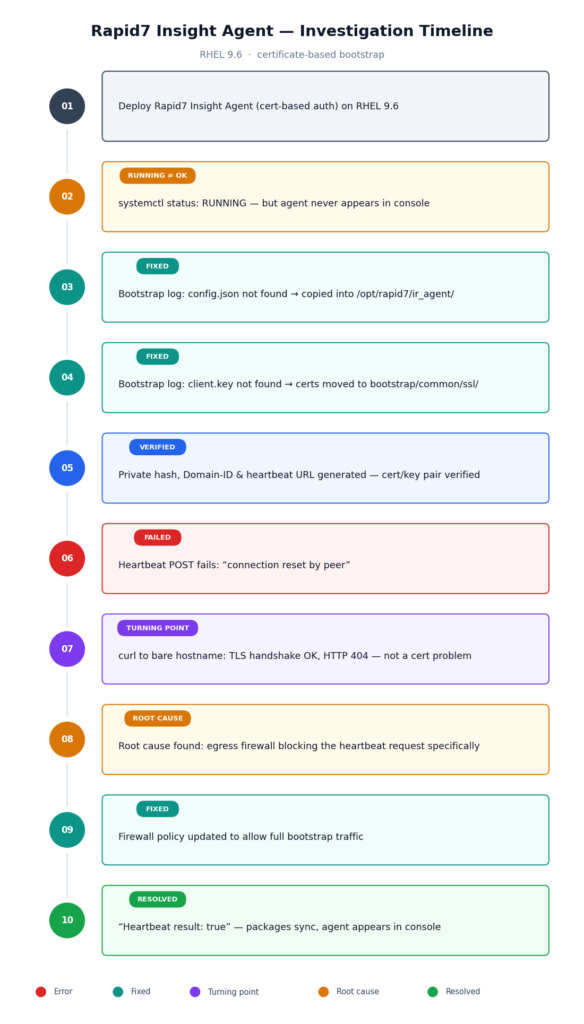
But the agent never showed up in the Rapid7 console. The collector list stayed empty. No new endpoint, no pending registration, nothing. This is the trap with agent-based security tooling: a RUNNING systemd status only tells you the binary launched — it tells you nothing about whether the agent completed onboarding. Insight Agent onboarding is actually a multi-stage handshake — process startup, bootstrap, config loading, certificate validation, heartbeat generation, collector discovery, registration — and a failure at any one stage still leaves the process alive and systemctlperfectly happy.
So I stopped trusting the green checkmark and started reading logs.
Step 1: Ruling Out the Obvious — DNS and Basic Connectivity
Before diving into agent internals, I wanted to rule out the boring stuff first. No point debugging a fifteen-layer bootstrap process if the box can’t even resolve the endpoint.
bash$ nslookup endpoint.ingress.rapid7.com |
DNS resolved cleanly. Service was up. Basic network path looked fine. That ruled out two of the most common “agent won’t check in” causes and told me the problem was almost certainly somewhere inside the agent’s own bootstrap process, not the network fabric. Time to go look at what the agent itself thought was happening.
Step 2: Finding the Bootstrap Logs
Rapid7’s Insight Agent has its own internal component structure, and the piece responsible for initial registration is the bootstrap process, which logs separately from the main agent service. Once I located the right log path and started tailing it, the first real error appeared almost immediately:
| [bootstrap] ERROR readAgentConfig failed: open config.json: no such file or directory |
This was the first useful piece of information in the whole investigation. It confirmed the problem wasn’t networking, wasn’t DNS, wasn’t a firewall — or so I thought at the time — it was something wrong in how the certificate package had been laid out on disk. The investigation pivoted from “is this a connectivity issue” to “is this a file placement issue.”
Step 3: The Config File Was in the Wrong Place
When Rapid7 issues a certificate-based bootstrap package, it comes as a flat bundle:
| rapid7/ ├── config.json ├── cafile.pem ├── client.crt └── client.key |
I had extracted this bundle to a working directory during the install, but the agent’s actual installation directory is:
| /opt/rapid7/ir_agent |
The bootstrap process expects config.json to live inside the agent’s own directory tree — it doesn’t go looking wherever you happened to unpack the certificate bundle. That distinction matters more than it sounds like it should, because none of the Rapid7 documentation I’d used for token-based installs ever made me think about where these files needed to physically live relative to the install path.
I copied the file over:
bash$ cp config.json /opt/rapid7/ir_agent/ |
Restarted the agent, tailed the bootstrap log again, and waited for the config error to disappear.
Step 4: A New Error, One Level Deeper
The config.json error was gone. Progress — but immediately replaced by a new one:
| [bootstrap] ERROR failed to generate private key hash: open /opt/rapid7/ir_agent/components/bootstrap/common/ssl/client.key: no such file |
This is the point in a troubleshooting session where it’s tempting to get frustrated — “I just fixed a missing file error and now there’s another missing file error, is this ever going to end?” But this is exactly the kind of signal you want. It meant the config file was now loading successfully, which meant the bootstrap process had advanced to its next stage: reading the certificate material. It was making progress; it just needed the same missing-file treatment for the SSL assets.
Step 5: Two SSL Directories, Only One of Which Matters
Here’s where things got non-obvious. I assumed there’d be one canonical SSL directory under the agent’s install path. There are actually two:
| /opt/rapid7/ir_agent/ssl /opt/rapid7/ir_agent/components/bootstrap/common/ssl |
The first one looks like the “obvious” place to drop certificate material, and if you’re pattern-matching off other agent installs you’ve done, it’s probably where you’d put it first. But the bootstrap component specifically — the piece responsible for initial registration with the ingress endpoint — reads its certificate material from the second path, nested under components/bootstrap/common/ssl.
I copied the certificate, key, and CA bundle into the correct location:
bash$ cp client.crt client.key cafile.pem /opt/rapid7/ir_agent/components/bootstrap/common/ssl/ |
Restarted the service one more time.
Step 6: Real Progress — Bootstrap Starts Working
This time the log output looked completely different. Instead of file-not-found errors, I got a sequence of successful bootstrap stages:
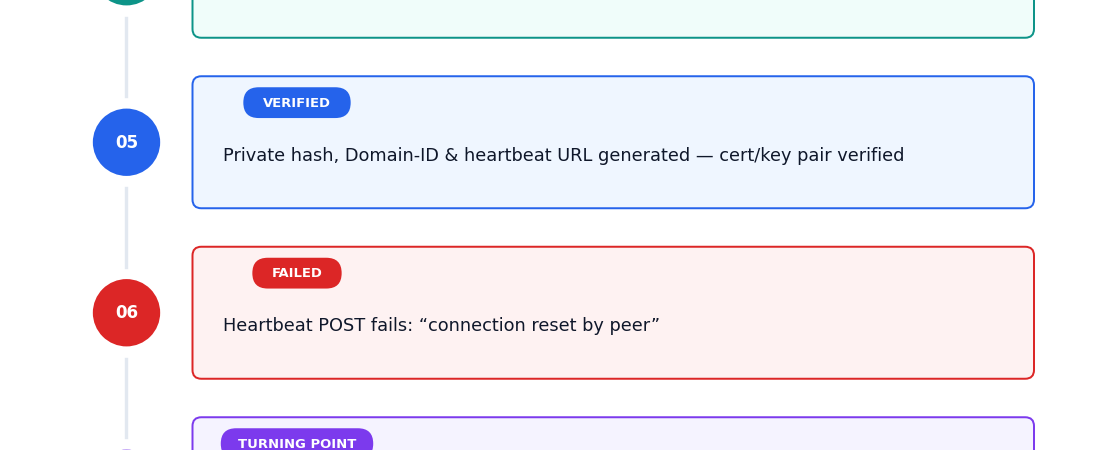
| [bootstrap] INFO Private Hash Generated: f4dec0f7acfe… [bootstrap] INFO Domain-ID Generated [bootstrap] INFO heartbeatURL created: https://us.bootstrap.endpoint.ingress.rapid7.com/api/v2/bootstrap/heartbeat |
In one restart cycle, the agent went from “can’t even find its own config” to successfully loading the config, loading the certificate and key, hashing it, generating a domain ID, and constructing a heartbeat URL pointed at the correct regional ingress endpoint. Four separate failure points, resolved by getting three files into two correct directories.
The shape of the problem had changed completely — from “the agent can’t even initialize” to “the agent is initialized and talking to Rapid7, but something in that conversation is failing.”
Step 7: Validating the Certificate (Because I’d Been Burned Before)
Before assuming the heartbeat step would just work, I wanted to independently verify the certificate itself was valid and matched its private key — not because I had a specific reason to distrust it, but because certificate expiry and mismatched key pairs are two of the most common causes of TLS failures that look like “the server just doesn’t like us.”
Checked the validity window:
bash$ openssl x509 -in client.crt -noout -dates |
Well within range. Checked issuer and subject to confirm this was actually issued by Rapid7’s CA and matched the expected identity:
bash
$ openssl x509 -in client.crt -noout -issuer -subject
issuer=C=US, O=Rapid7, CN=Rapid7 Bootstrap CA
subject=C=US, O=Rapid7, CN=<agent-identifier>
That looked correct. Then the check that actually matters when you’re debugging cert/key issues — confirming the certificate and private key are a matched pair by comparing their modulus hashes:
bash
$ openssl x509 -noout -modulus -in client.crt | md5sum
a94f7d2e1c9b0f3a8d6e5c2b1a0f9e8d  -

$ openssl rsa -noout -modulus -in client.key | md5sum
a94f7d2e1c9b0f3a8d6e5c2b1a0f9e8d  -
Identical hashes — a confirmed, valid pair. I also sanity-checked the CA bundle to make sure it contained a full chain rather than a single leaf cert:
bash$ grep -c "BEGIN CERTIFICATE" cafile.pem |
Eleven certificates in the bundle — a proper chain, not a truncated file. Every piece of certificate material checked out, which meant I could rule out “bad certificate” or “mismatched key” with confidence and stop circling back to re-check them.
Step 8: The Heartbeat Fails — Connection Reset by Peer
With config, certs, and keys all confirmed good, I expected the heartbeat to just succeed. Instead:
| [bootstrap] ERROR Post https://us.bootstrap.endpoint.ingress.rapid7.com/api/v2/bootstrap/heartbeat: read: connection reset by peer |
My first instinct here — and I’ll admit this openly, because I think it’s the instinct most of us have — was certificate problem. “Connection reset by peer” during a TLS handshake, on an mTLS integration, screams cert or CA chain issue. So I reproduced it manually with curl to see if the agent itself was the problem or if any HTTPS client would hit the same wall:
bash$ curl -vk https://us.bootstrap.endpoint.ingress.rapid7.com/api/v2/bootstrap/heartbeat |
Same failure, outside the agent process entirely, using nothing but OpenSSL’s TLS stack. That confirmed this wasn’t a bug in the agent binary — but it still left “certificate/CA problem” and “something in the network path” as equally live theories, because a reset during SSL_connect can be caused by either side.
At this point I had four working theories, in roughly the order I suspected them:
- The client certificate wasn’t correctly registered against the expected Rapid7 domain or organization, and the ingress endpoint was rejecting the handshake before completing it.
- A collector assignment mismatch on Rapid7’s side, where the bootstrap endpoint had no valid target to route this agent’s registration to.
- An SSL/TLS inspection device somewhere in the egress path interfering with mutual TLS.
- Some kind of outbound network restriction, though I ranked this low — after all, DNS resolved and the earlier bootstrap connection had gotten far enough to build a heartbeat URL, so something was reaching the internet fine.
Rather than start pulling on any one of those threads — each of which meant a different team, a different tool, or a support ticket — I wanted one more independent data point first.
Step 9: A Second curl Test Changes Everything
Instead of hitting the exact heartbeat path again, I pointed curl at the bare hostname, no path at all:
bash$ curl -vk https://us.bootstrap.endpoint.ingress.rapid7.com |
That single result rewired my entire theory of the problem. This was the same hostname that had just reset the connection seconds earlier — but this time, TLS negotiated cleanly, the server presented a valid certificate, and I got back a normal HTTP response (a 404, because nothing lives at the root path, but a 404 is still a complete, healthy HTTP conversation).
That one test proved, all at once:
- DNS resolution worked
- TCP connectivity to the host worked
- The full TLS handshake succeeded
- Server certificate validation succeeded
If this had been a blanket network or TLS problem — a broken route, an expired cert, a bad CA chain — both requests should have failed identically, because they were hitting the exact same host on the exact same port. They didn’t. Only the specific heartbeat request, POST /api/v2/bootstrap/heartbeat, was getting reset. Everything else pointed at that one request being singled out somewhere between my server and Rapid7’s infrastructure.
That narrowed my four theories down to essentially one real category: this wasn’t a broad connectivity or certificate issue anymore. It was something reacting specifically to the bootstrap registration request itself — most likely a security device inspecting outbound traffic at a level more granular than “is this domain allowed.”
Step 10: Looping In the Network Team With a Precise Ask
This is where having a specific finding instead of a vague symptom made a real difference. I didn’t go to our network team with “the Rapid7 agent isn’t working.” I went with: TLS to this exact host succeeds on one path and gets reset on another — can you check the egress policy for this destination?
They pulled the firewall logs for the host and found that outbound HTTPS traffic to the Rapid7 bootstrap/ingress endpoint was subject to a narrower security policy than general web traffic — the kind of rule that lets a plain TLS handshake and a simple GET through, since the domain itself is recognized, but flags or resets less common outbound patterns like an unfamiliar POST to a specific API path. Whether that was an outdated allow-list entry, an IPS signature, or a stale rule written before Rapid7’s bootstrap architecture existed, the effect was the same: my agent could say hello to Rapid7, but couldn’t actually complete registration with it.
Step 11: The Fix — Updating the Egress Firewall Policy
Once the firewall/security policy was updated to permit the full HTTPS traffic pattern required for Rapid7 bootstrap and ingress communication — not just a basic handshake to the domain — I restarted the agent and watched the bootstrap log one more time:
| [bootstrap] INFO Heartbeat result: true [bootstrap] INFO Package Operations Count: 5 [bootstrap] INFO Package Locations: https://cdn.storage.endpoint.ingress.rapid7.com/… |
Heartbeat result: true was the line I’d been chasing through eight prior steps. Right behind it, the agent started pulling package metadata from Rapid7’s cloud storage — real, two-way communication, not just a successful handshake. A few minutes later, the host showed up in the Rapid7 console with an active “Last Seen” timestamp.
Root Cause: An Egress Firewall Was Blocking the Rapid7 Insight Agent
After all of that — config file placement, SSL directory structure, private key hashing, certificate and key-pair validation, TLS handshake verification — the actual root cause was refreshingly unglamorous:
An outbound firewall rule was blocking the specific HTTPS traffic required for the Rapid7 Insight Agent to complete bootstrap registration with the ingress endpoint.
Everything that looked like a certificate or configuration problem along the way was real and worth fixing — the config file genuinely was in the wrong place, and the SSL files genuinely were in the wrong directory. But once those were corrected, the remaining failure had nothing to do with certificates, keys, or agent configuration at all. It was a network security control quietly resetting one specific type of outbound request while letting everything else through, which is exactly the kind of failure that looks like a TLS or certificate bug until you test it from two different angles.
Lessons Learned
A RUNNING service tells you almost nothing about application-level health. Systemd only knows the process didn’t crash. For any agent that performs a multi-stage handshake with a remote service — registration, licensing, heartbeat, whatever — you have to check the application’s own logs to know if it actually succeeded at its job.
Understand the bootstrap stages before you start changing things. Once I knew Insight Agent onboarding was actually process startup → bootstrap → config loading → certificate validation → heartbeat generation → collector discovery → registration, every error message told me exactly which stage had failed and what to check next.
“Connection reset by peer” is not automatically a certificate problem. It’s the instinctive read, and sometimes it’s correct — but a firewall, an IPS, an App-ID engine, or a transparent proxy can reset one specific type of connection while a plain TLS handshake to the same host succeeds without issue. Don’t let the TLS-flavored error message send you straight to the certificate files.
A negative test is often more valuable than a positive one. The second curl test didn’t fix anything by itself. What it did was eliminate DNS, TCP, TLS, and certificate validation as causes in a single command, and point the investigation at something far more specific than “the network is broken.”
Bring precise findings to other teams, not vague symptoms. Telling the network team exactly which request succeeded and which one didn’t, against the same host, got a fast and targeted answer. “The agent isn’t working” would have started a much longer conversation.
File location matters as much as file content. Every certificate file in this investigation was valid the entire time. The actual problems — twice, before the firewall was even in the picture — were about files being in the wrong directory, not wrong in content.
Practical Recommendations if You Hit This
If you’re deploying the Rapid7 Insight Agent with certificate-based authentication and it’s not showing up in the console, here’s the order I’d check things in, based on this experience:
- Confirm DNS resolution and basic TCP/443 reachability to the ingress endpoint first — cheap to check, rules out a whole category of problems.
- Go straight to the bootstrap-specific logs rather than the main agent log. That’s where onboarding failures actually surface.
- If you see a config or file-not-found error, verify the exact paths the bootstrap component expects. Check both
ssl/andcomponents/bootstrap/common/ssl/— don’t assume the certificate bundle belongs in whichever directory looks most obvious. - Once bootstrap initializes (private hash, domain ID, and heartbeat URL all generate successfully), independently validate the certificate: expiry dates, issuer/subject, and a modulus hash comparison between the cert and key.
- If the heartbeat still fails with a reset error, run two
curl -vktests against the same host: one against the exact failing path, and one against the bare hostname or a different path. If they behave differently, you’re not looking at a broad TLS or certificate issue — you’re looking at something narrower, most likely a firewall, IPS, or proxy policy scoped to that specific request pattern. - Bring that comparison directly to your network/security team and ask them to check egress rules for the exact destination and request type, rather than opening a generic “can’t reach the internet” ticket.
- If the network side checks out completely clean, only then escalate to Rapid7 support to check certificate-to-domain or collector mapping on their end.
The real lesson from this one has stuck with me more than any individual command: follow the evidence one log line at a time, and don’t let a familiar-sounding error message talk you into skipping a step. “Connection reset by peer” lookedlike a certificate problem right up until a second, differently-scoped test proved it wasn’t. The fix, once we found it, took the network team about five minutes. Finding out where to point them took most of the afternoon — and that’s usually how it goes.